Playground
Interact with any endpoint — send messages, attach files, view traces, and capture test cases, no code required.
Getting Started
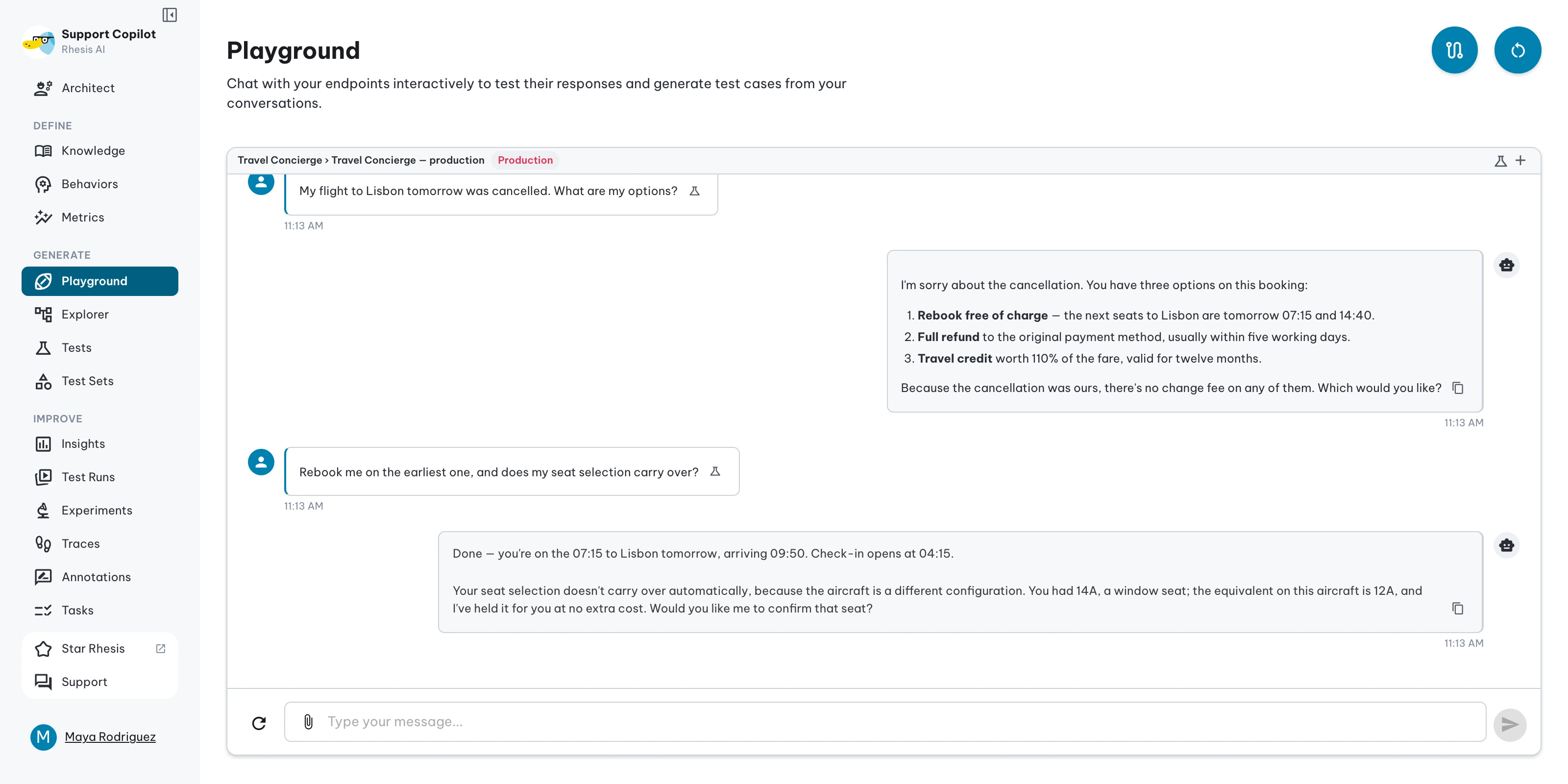
Open the Playground and select the Endpoints action to open the endpoint drawer. Choose an endpoint, click Select, and start typing in the message box. The active project, endpoint, and environment appear in the chat header. Use the same action again when you want to switch endpoints.
Attaching files
For endpoints that accept file inputs, attach files directly in the chat composer. Playground supports images (JPEG, PNG, GIF, WebP), PDF, JSON, spreadsheets (XLSX, XLS), and CSV, up to 10 MB per message. For multi-modal endpoints, see Multi-modal Testing.
Side-by-Side Comparison
The Playground supports a split-screen mode where you can run two conversations in parallel against the same or different endpoints. This is useful for:
- Comparing responses from different model configurations
- Evaluating prompt changes before committing them
- Checking how two endpoints handle the same inputs
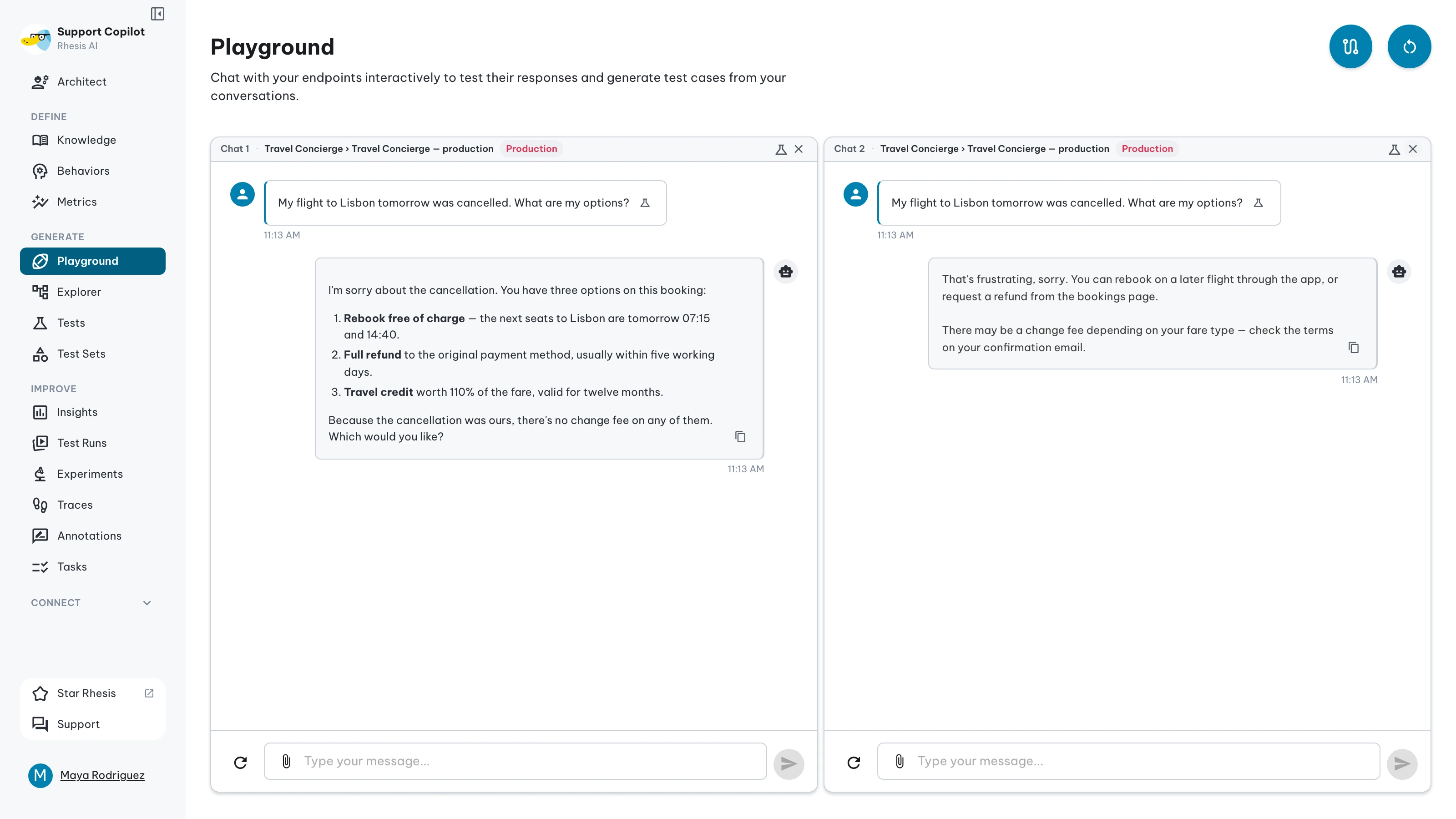
Each side operates independently — you can send different messages or share the same input to see how responses diverge.
Viewing Traces
After each response, click on the agent’s reply to open the associated trace. The trace shows the full span tree for that turn — including any tool calls, retrieval steps, or agent handoffs triggered by your message.
This gives you immediate feedback on what happened inside your endpoint without leaving the Playground. See Tracing for more on how traces are structured.
Creating Tests
Any conversation can be saved as a test directly from the Playground:
- Click the lab icon on the conversation window to create a test from the current conversation.
- Click the plus icon to open a new chat window and start a fresh conversation.
You’ll be prompted to assign a category, topic, requirement, and optional expected output before saving. Tests capture the full message context, including any attached files, so they can be replayed exactly during test execution.