Models
Models are the LLM providers Rhesis uses for three purposes:
- Test generation: create test cases from your requirements (see Tests)
- Evaluation (LLM-as-judge): score responses with LLM-powered Metrics
- Execution (multi-turn): drive conversation simulations with Penelope against your endpoints
Configure a default model per purpose in the model settings, or override it per run (see Test Execution).
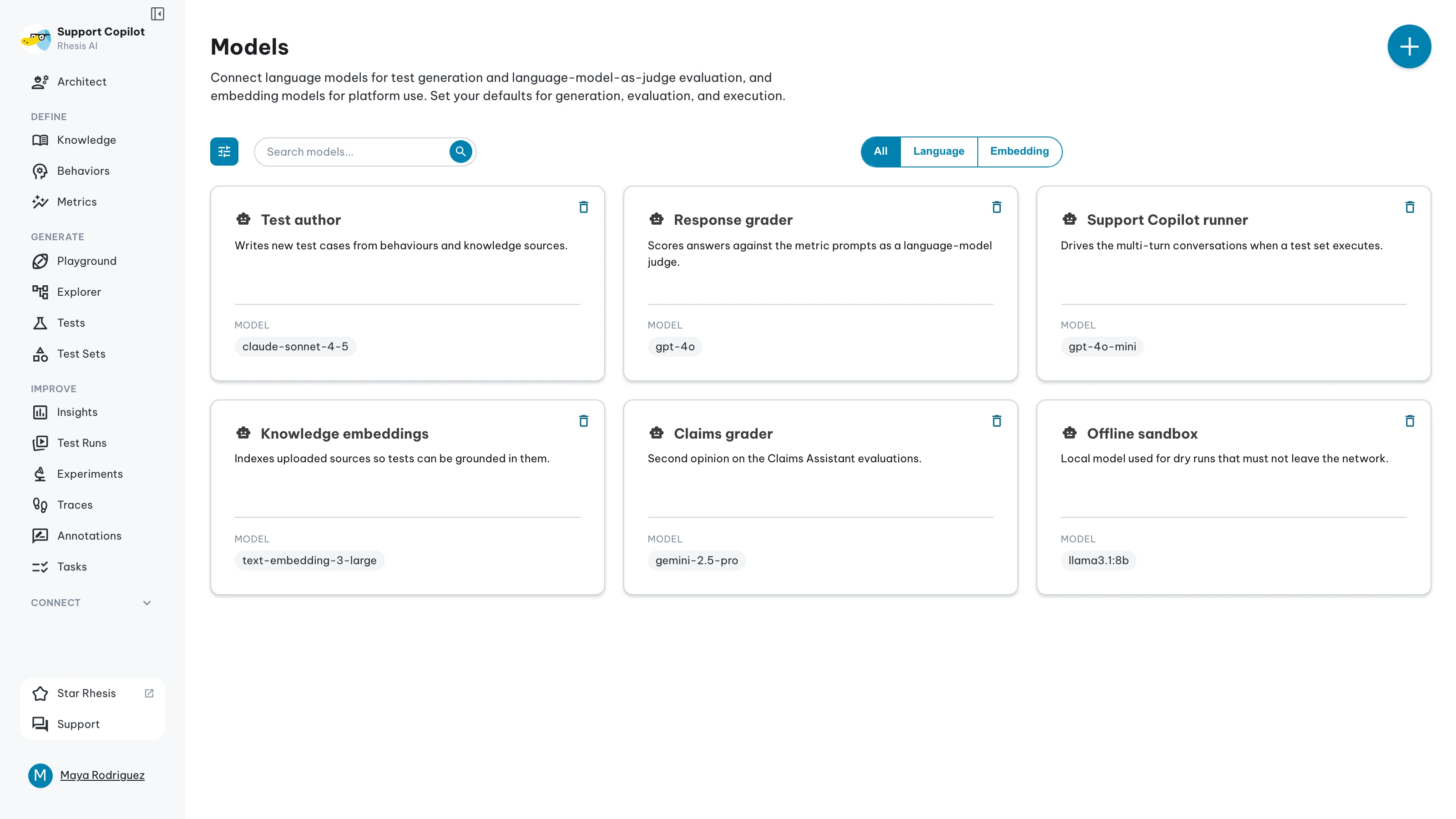
Default Model
Rhesis Default is a Rhesis-hosted model, pre-configured for generation, evaluation, and execution with no API key required — so you can start testing without connecting a provider.
Supported Providers
Rhesis connects to major cloud providers and to local or self-hosted runtimes (Ollama, vLLM, LiteLLM proxy). A selection:
Provider list
- Anthropic - Claude provider
- Azure AI Studio - Azure-hosted model endpoints (
azure_ai) - Azure OpenAI - Azure OpenAI deployments (
azure) - Cohere - Command R provider
- Google - Gemini provider
- Groq - LPU-based model hosting
- LiteLLM Proxy - OpenAI-compatible proxy gateway
- Meta - Llama provider
- Mistral - Mistral provider
- OpenAI - OpenAI provider
- Perplexity - Labs model API
- Polyphemus - Adversarial testing model (restricted access workflow)
- Replicate - Model hosting provider
- Together AI - Multi-model provider
Connecting a Model Provider
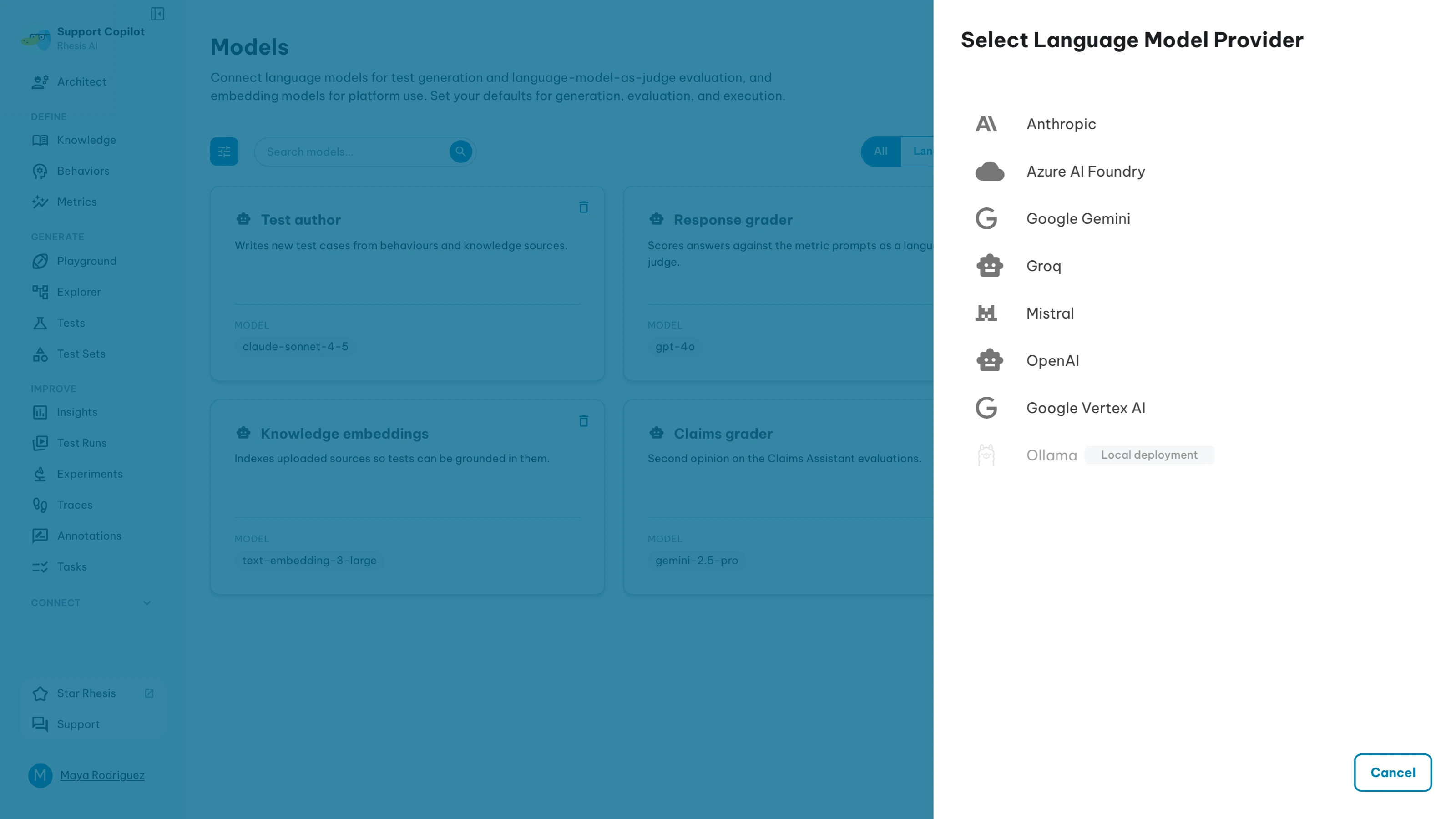
Click Add Model to open the model connection drawer. The drawer has two steps:
Select a provider
Choose whether you are adding a language model or an embedder, then select the provider from the provider list. Providers display icons and badges so you can quickly distinguish hosted, cloud, and restricted-access options.
Connect to the provider
Fill in the connection details and defaults:
| Field | Purpose |
|---|---|
| Connection Name | Unique display name for this connection |
| Model Name | Provider-specific model or deployment name, such as gemini-1.5-pro or gpt-4-turbo |
| API Endpoint | Endpoint URL, for providers that need one (see the table below) |
| API Key | Provider API key, when required |
| Default for Test Generation | Use this model when generating tests |
| Default for Evaluation (LLM as Judge) | Use this model for LLM-as-judge metrics |
| Default for Execution (Multi-Turn) | Use this model for conversation simulation with Penelope |
Click Test Connection before saving.
Provider-Specific Connection Fields
Some providers require endpoint configuration in addition to model name:
| Provider | Provider value | API Endpoint required | API key required | Notes |
|---|---|---|---|---|
| LiteLLM Proxy | litellm_proxy | Yes | Optional | Pre-filled with http://host.docker.internal:4000 by default |
| Azure AI Studio | azure_ai | Yes | Yes | Use your Azure AI inference endpoint URL |
| Azure OpenAI | azure | Yes | Yes | Use your Azure OpenAI resource endpoint URL |
If a model connection fails, use Test Connection in the connection dialog before saving.
Polyphemus Access Control
Polyphemus uses an explicit request-and-review workflow. If access is not granted yet, the model card shows Access Required and a Request Access action.
Request Workflow
- Open Models and click Request Access on the Polyphemus card.
- Submit request details in the access modal.
- The request is recorded and review notification is sent.
- After approval, your account is marked as verified and the model becomes available.
Request Fields
| Field | Rules |
|---|---|
justification | Required, 10-2000 characters |
expected_monthly_requests | Required, integer from 0 to 10,000 |