Organizations & Team
Manage your organization’s profile, settings, and team members.
Organization Settings
You can configure your organization’s information and contact details in Organization Settings .
The Preferences tab sets the organization’s default currency for costs. See Token Costs for the supported currencies and how each person can override it.
Organization menu and sidebar
The sidebar brand block shows the organization. Open it to access organization settings, projects, and usage. The active project has its own box below it; see Working in a Project.
The main sidebar is organized into product areas:
| Section | Pages |
|---|---|
| Define | Knowledge, Requirements, Metrics |
| Generate | Playground, Explorer, Tests, Test Sets |
| Improve | Insights, Test Runs, Experiments, Traces, Tasks |
| CONNECT | Endpoints, Models, Tools, API |
Sidebar items you don’t have permission to access are hidden rather than shown locked.
Enterprise installations can also enable:
- Roles & Permissions for role-based access control
- Single Sign-On for per-organization OIDC login
- API Clients for machine-to-machine token exchange
- Audit Log for a record of who did what, with export and streaming
Team Management
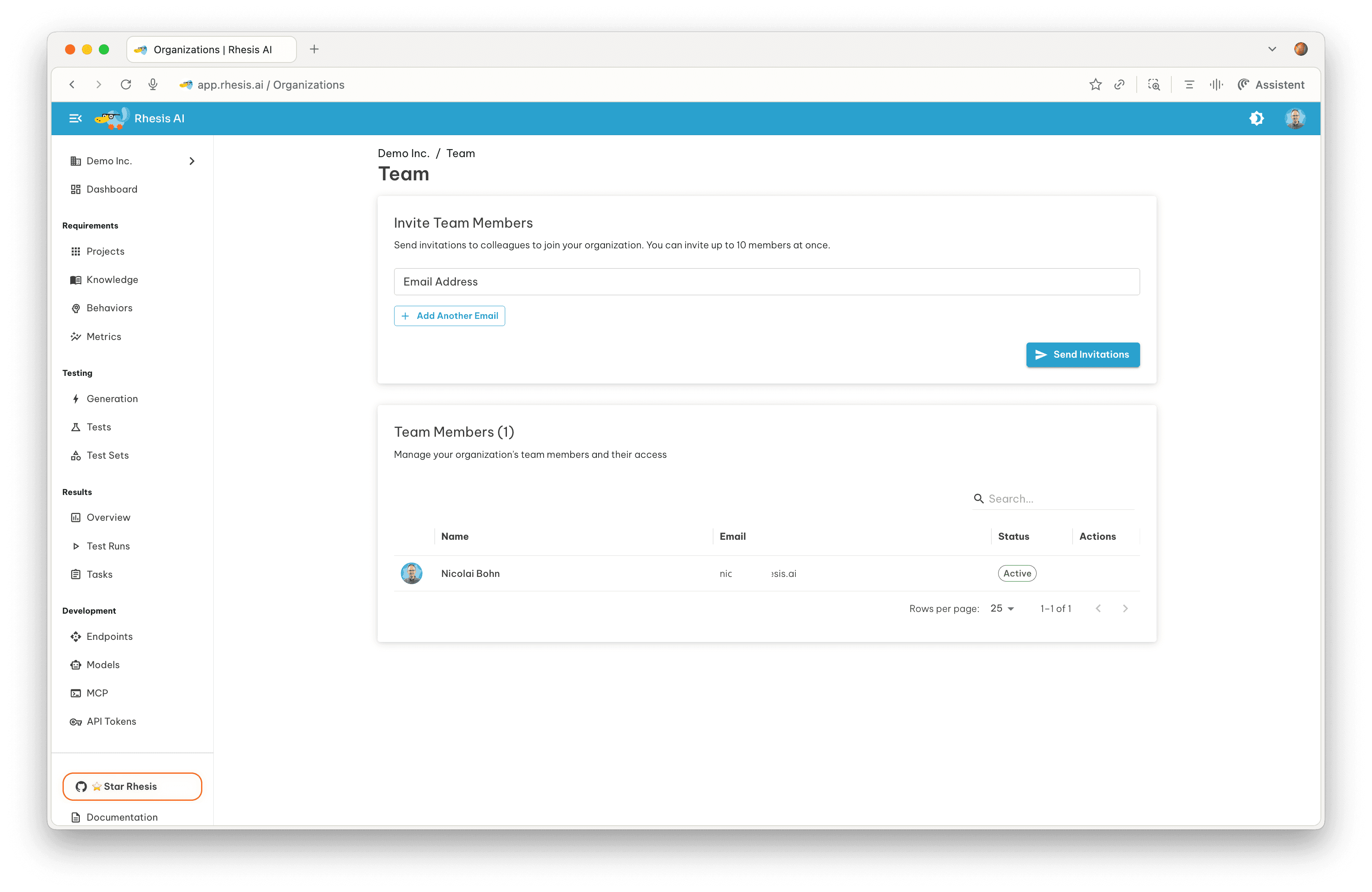
Inviting Team Members
Send an invitation email from the Team Page . Each invite has a status:
- Invited: the email has been sent, but the user has not accepted yet.
- Active: the user has accepted and is part of your organization.
Users cannot belong to multiple organizations simultaneously.
Leaving an Organization
- Navigate to Organization Settings
- Scroll to “Danger Zone”
- Click “Leave Organization” and type the organization name to confirm
You’ll immediately lose access and be signed out. A new invitation is required to rejoin.
Next steps
- Create Projects to organize your work
- Configure Integrations for your workflow
- Enable Single Sign-On for enterprise identity