Creating Endpoints
There are two ways to set up an endpoint:
- Manual — walk through the 4-step wizard yourself
- Auto-Configure — paste a curl command or API docs and let AI generate the mappings
Manual Configuration
Click + on the Endpoints page and pick REST endpoint. SDK connectors are registered from code instead; see SDK Endpoints.
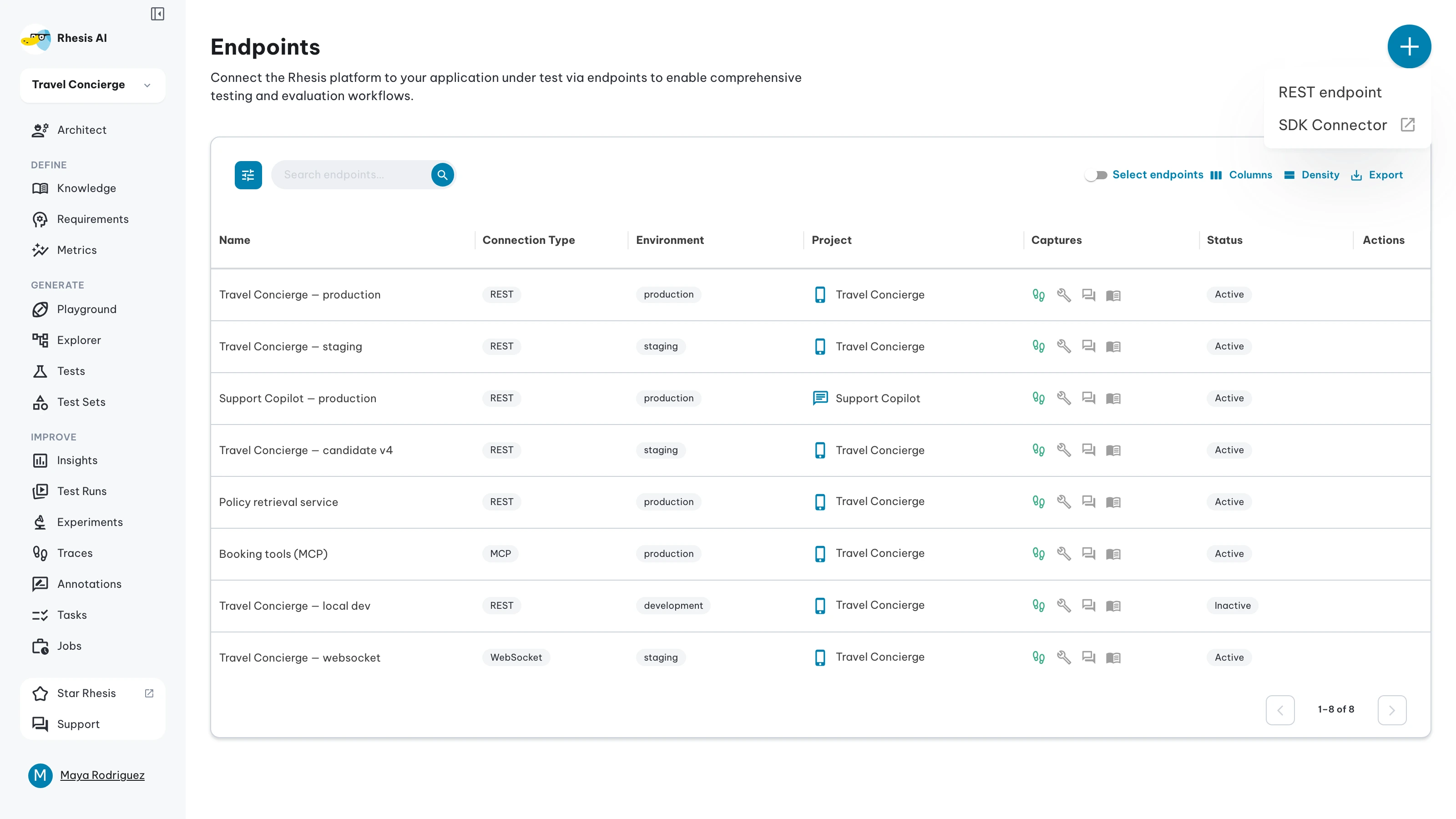
The wizard has four steps: Basics, Connection, Mapping, and Test.
Fill in the basics
Enter the endpoint Name, an optional Description, and the Environment (Production, Staging, Development, or Local). When you create an endpoint from a project-scoped view, the active project is applied automatically.
Environment tags the endpoint so you can keep configurations apart and spot production endpoints on the grid.
Timeout — overrides the default invocation timeout for this endpoint (1 — 3600 seconds). Leave it empty to use the system default: 30s for REST, 120s for SDK endpoints.
Enable tracing — on by default. Turn it off when the endpoint already emits its own telemetry; invocations then skip trace and telemetry collection.
Set up the connection
On the Connection step, enter the Method and Endpoint URL, pick an Authentication type, then add any custom request headers.
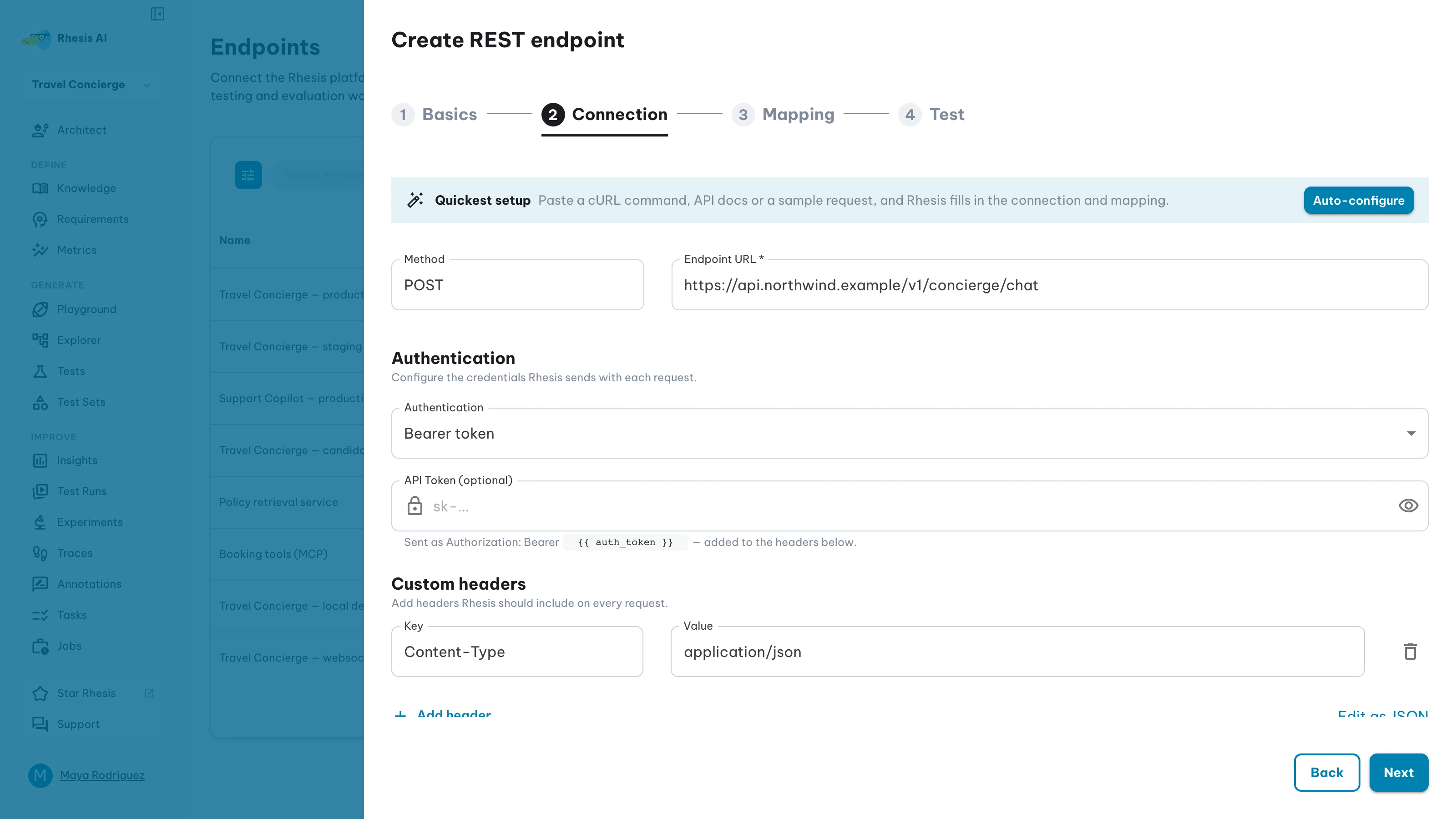
- Bearer token: paste your API key or token. Leave it empty for an endpoint that needs no authentication.
- OAuth 2.0 client credentials: enter the Token URL, Client ID and Client secret. The token URL must use
https://, since the client secret is sent to it;http://is accepted only forlocalhost. Audience, Scopes (separated by spaces) and Extra payload (a JSON object of string fields to add to the token request) are optional.
For client credentials, Rhesis sends a form-encoded grant_type=client_credentials request to the token URL. Client authentication sets how the client ID and secret are sent, and must match the setting at your OAuth provider:
- Basic auth header (default,
client_secret_basic): in anAuthorization: Basicheader. Every OAuth server must support this. - In request body (
client_secret_post): asclient_idandclient_secretform fields.
Rhesis caches the access token until it expires and requests a new one when you change the credentials.
Either way, the token is available as {{ auth_token }} in your request headers. If no Authorization header is set, Rhesis adds Authorization: Bearer <token> automatically. Tokens and client secrets are stored encrypted and are never shown again after saving.
Map the request and response
On the Mapping step, tell Rhesis where each of its variables goes in your request and where it comes back in the response.
Request — for each Rhesis variable, enter the field in your request body it goes into. Use dots for nested fields, e.g. payload.query. input is required; leave unused rows empty. Add an optional System prompt, or switch to Edit as JSON to write the body as a template yourself.
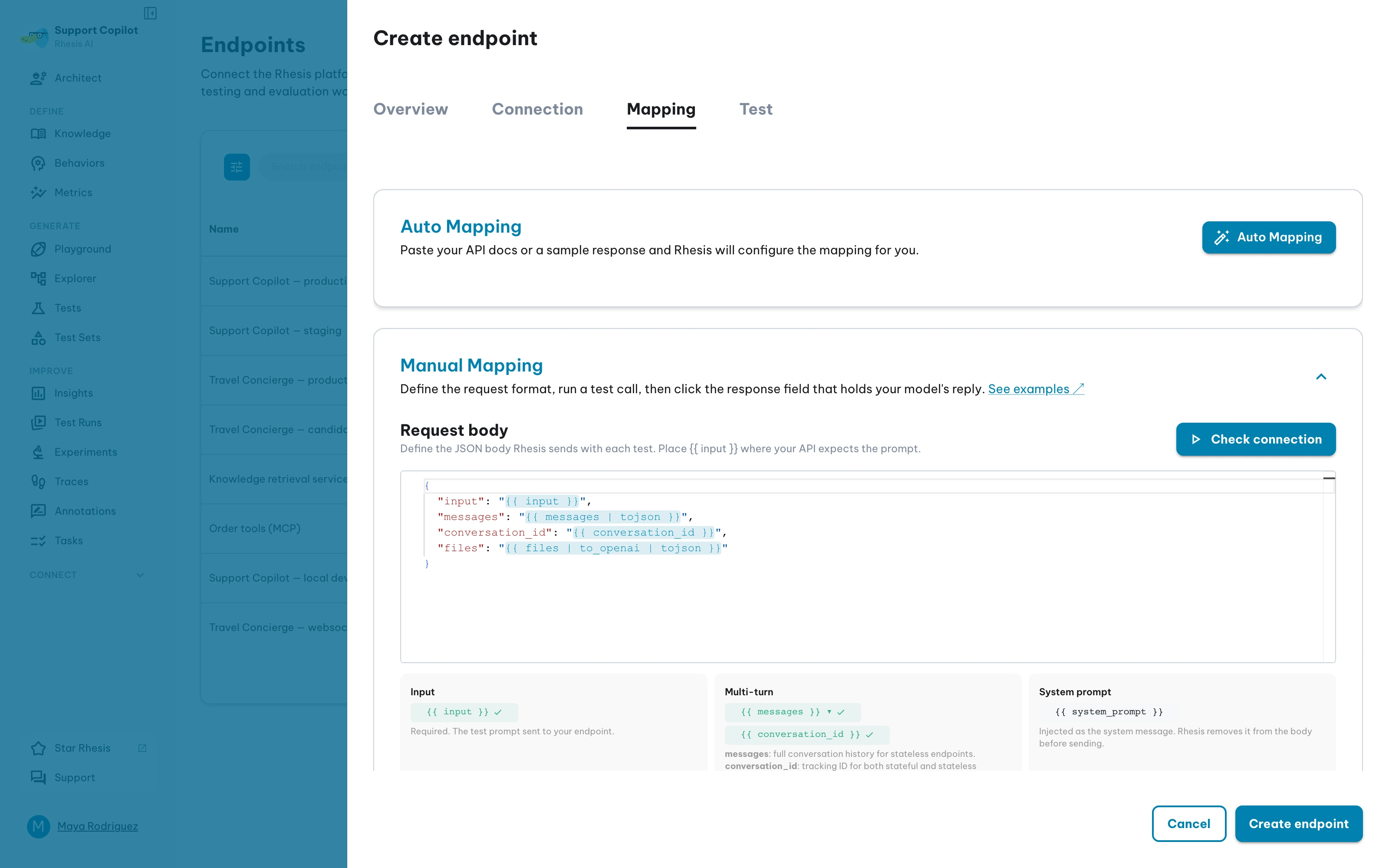
For the full list of variables and filters, see Request Mapping.
Response — Rhesis sends a test request and shows Test request successful when your API answers. For each variable, pick the part of the response that holds it; output is required. Open Complete response returned by your API to see the full payload.
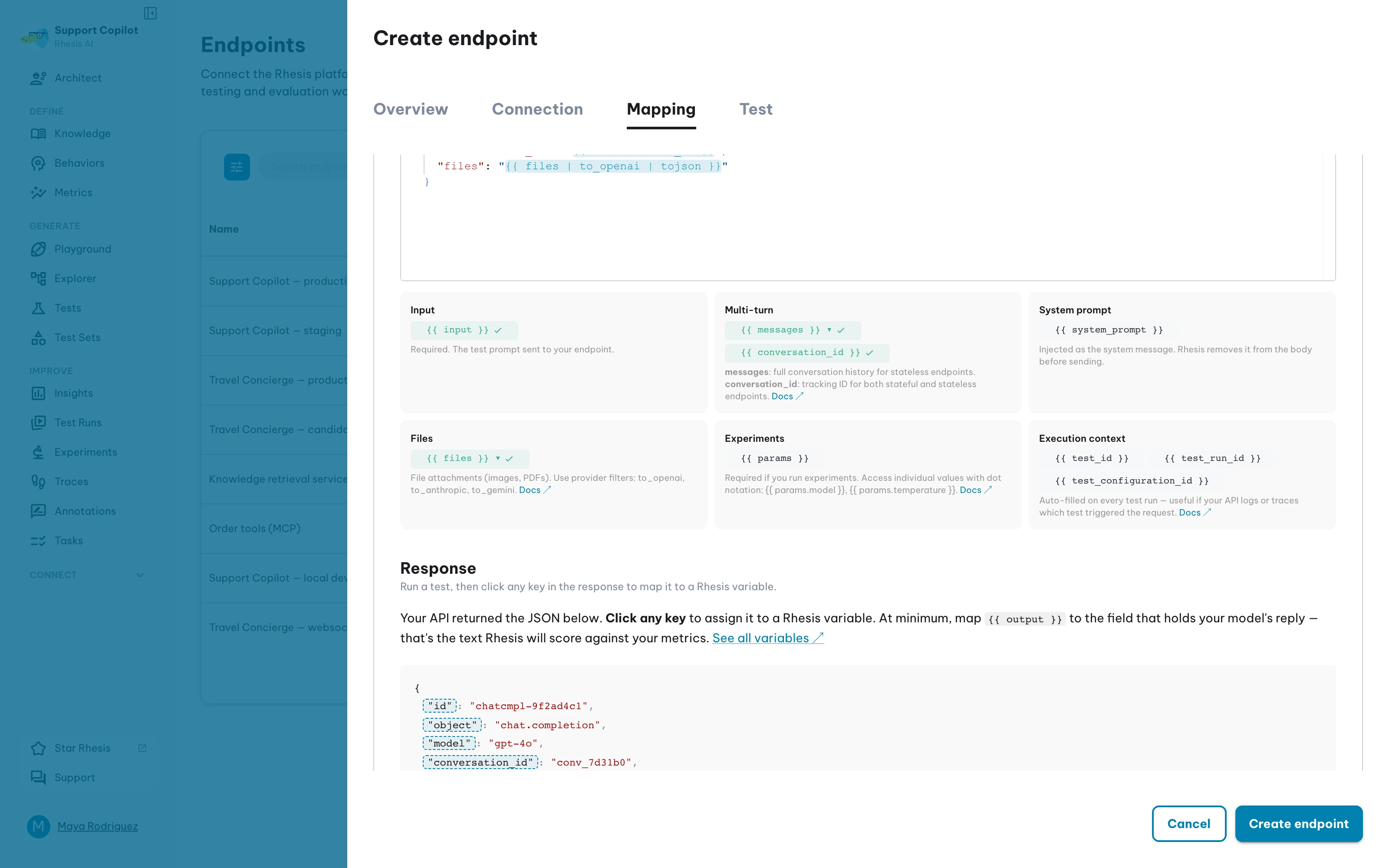
For extraction syntax, see Response Mapping.
Run a test request
On the Test step, type a value for each request variable and click Send test request. The response card shows what your API returned and the value Rhesis reads for each variable. Create endpoint unlocks once a test request passes and the step shows Endpoint is ready.
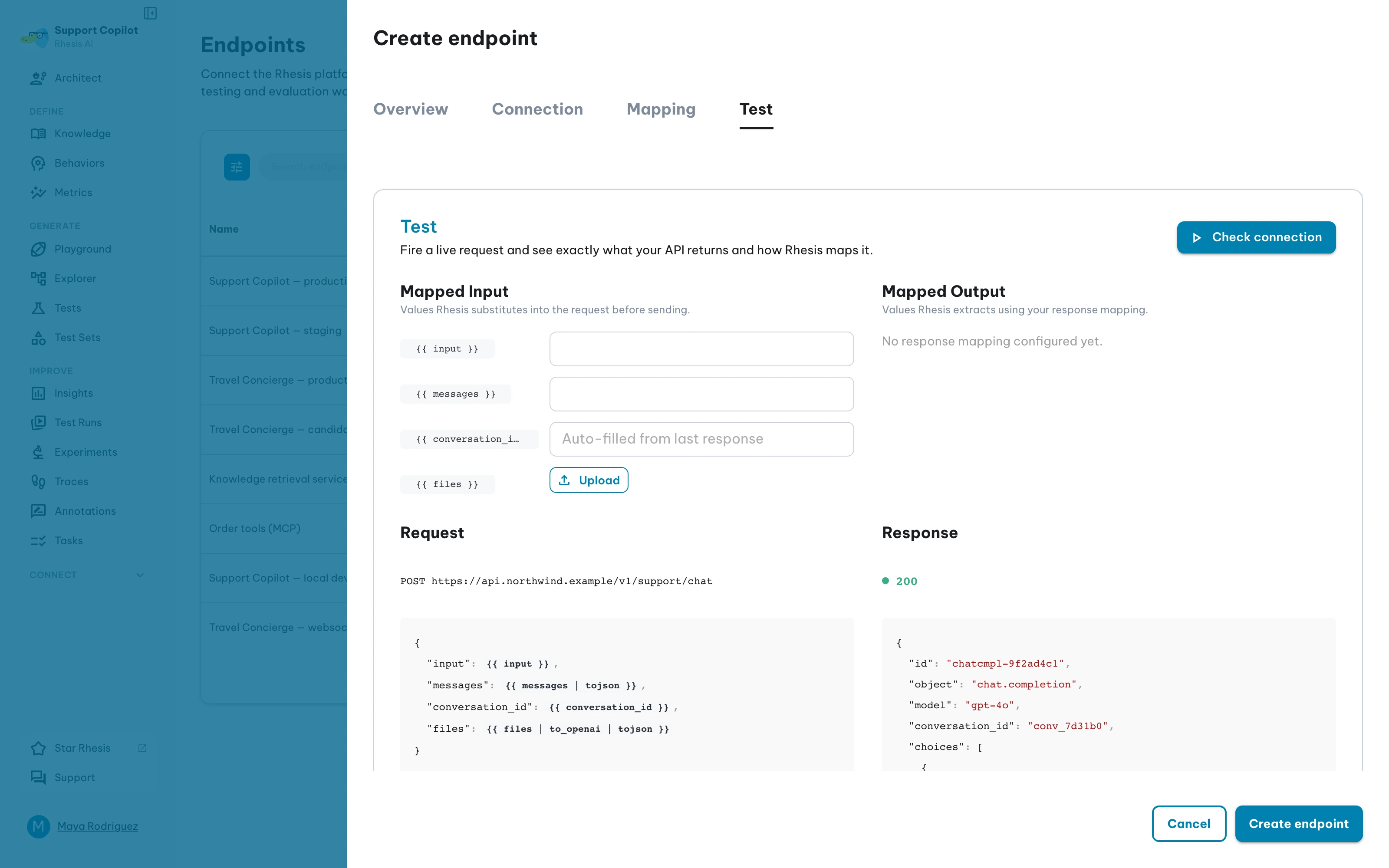
Save
Click Create endpoint to save.
Auto-Configure
Auto-Configure generates your request and response mappings automatically. Use it when you have a working API and don’t want to write the Jinja2 template and JSONPath expressions by hand.
Requires an AI generation model configured in your organization settings (or the platform default).
Fill in the basics
Provide the endpoint Name on the Basics step, then go to Connection and enter the API Token if your API needs one.
Click Auto-configure
In the Quickest setup bar at the top of the Connection step, click Auto-configure.
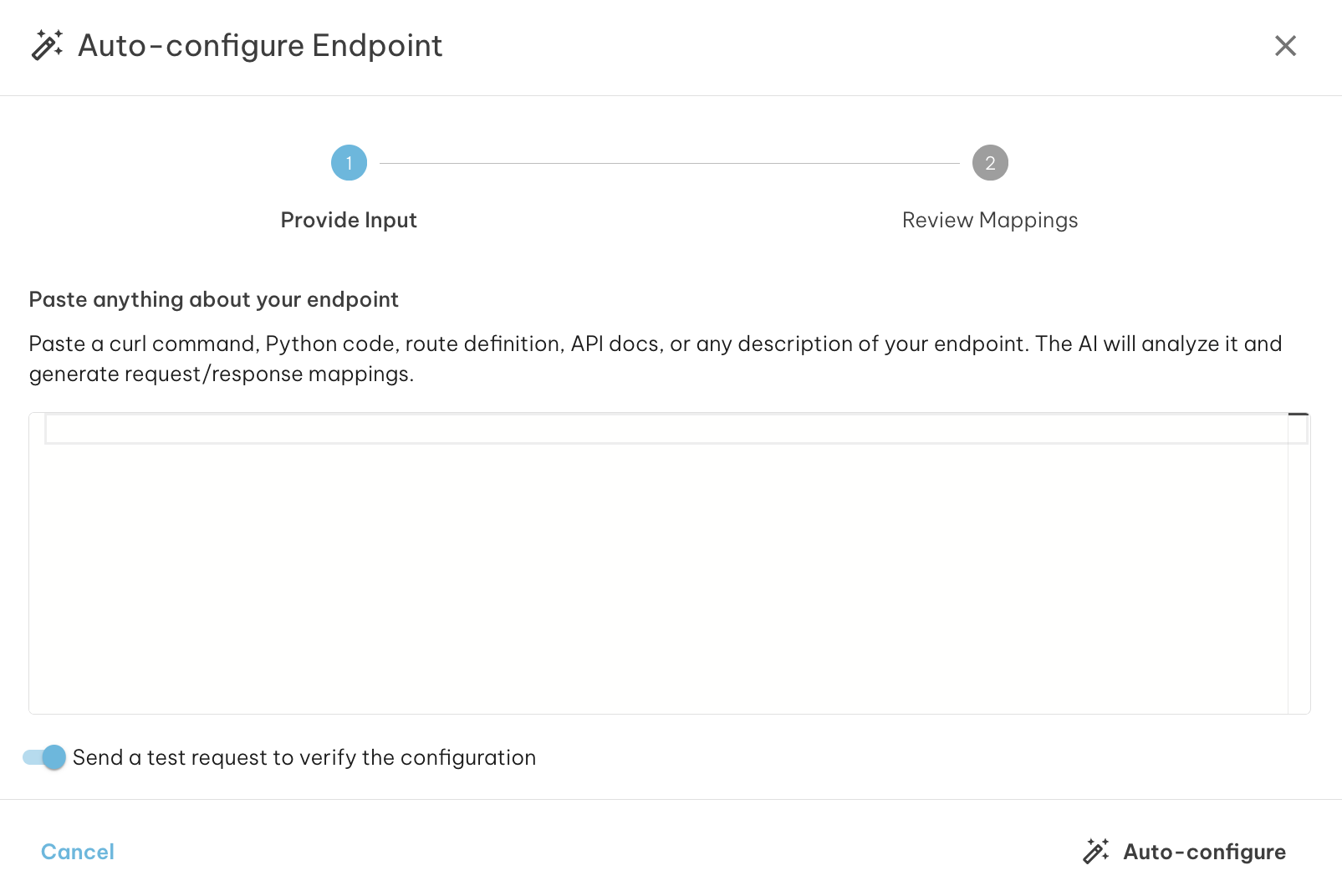
Paste reference material
Paste any of the following — the AI accepts multiple formats:
curl command (most reliable):
Python code (requests call or Flask/FastAPI handler):
Sample request/response JSON:
Plain text API docs — any description of the endpoint’s expected fields and response structure also works.
Run and review
Click Auto-configure. Behind the scenes Rhesis runs a multi-step pipeline:
- Parse — AI analyzes your input to identify the URL, method, request fields, and response structure
- Probe (optional) — Rhesis sends a live request to capture the real response format, retrying up to 3 times if needed
- Self-correct — if the probe fails, AI analyzes the error and adjusts the request before retrying
- Generate — using the confirmed schema, AI produces Jinja2 request templates and JSONPath response mappings
Review the confidence level and any warnings before applying:
- High (70%+) — verified via live probe
- Medium (40–70%) — generated, may need minor adjustments
- Low (below 40%) — best guess, review manually
Click Show probe response to see the raw JSON your endpoint returned — useful for verifying the response mapping extracts the right fields.
When probing is enabled, Rhesis sends a real API call to your endpoint. Disable probing if your endpoint has side effects (e.g., creating records, sending emails, or charging credits).
Apply and verify
Click Apply to Endpoint to populate the Mapping tab, then switch to Test to verify end-to-end.
If only some fields were mapped, apply the partial result as a starting point and fill in the missing fields manually.
Troubleshooting
“No AI model configured” — set up a generation model in Settings > AI Models.
“Could not parse input” — paste a working curl command with a real request body, or include both a request and response example.
“Mapping generated but unverified” — the probe failed; use the Test tab to debug manually. Common causes: API requires specific field values, rate limits block the probe, or the endpoint expects pre-existing state (e.g., a valid session).
Tips for best results
- Provide a curl command with a real request body — the most reliable input
- Include both request and response examples when possible
- Mention the response structure if your API returns nested JSON
- Specify the conversation pattern for multi-turn endpoints (messages array or conversation IDs)
- Always verify in Test after applying, especially for low-confidence results
From the SDK
Pass probe=False to skip the live probe.