Metrics
Metrics are the quantifiable measurements that evaluate an AI response and decide whether it meets your requirements. They are organized by Requirements: requirements define what you expect, metrics measure how well you meet it.
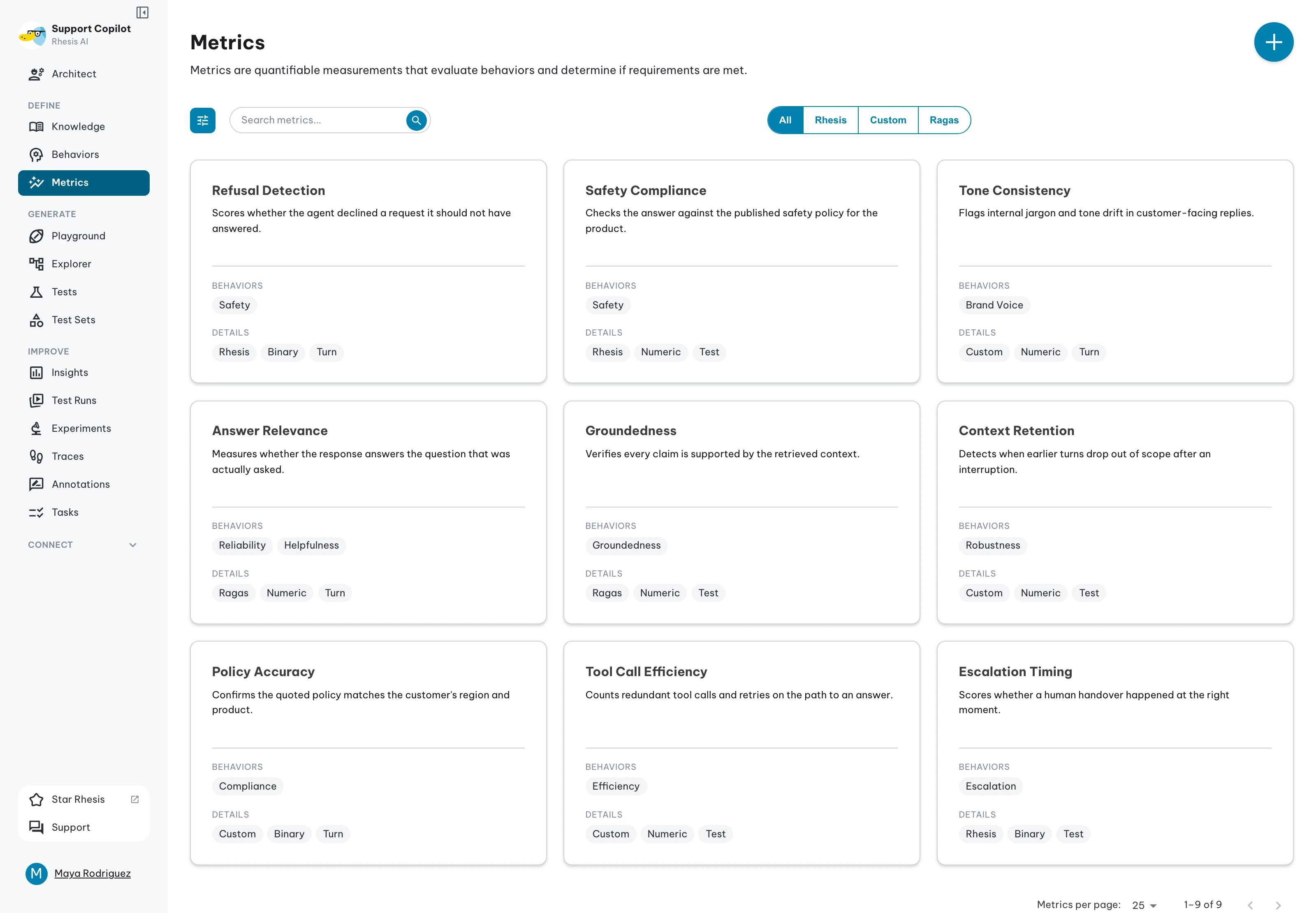
Offline Tests vs Online Trace Metrics
Metrics can be used in two different contexts:
- Offline Evaluation (Testing): Grade deterministic outputs against known ground-truths or predefined test sets.
- Online Evaluation (Trace Metrics): Automatically evaluate live production traces in real-time as users interact with your AI endpoint.
To learn how to enable metrics for live production traffic, read the Trace Metrics Guide.
You can add an existing metric to a requirement by clicking the ”+” icon in the top-right corner of the chip on the Metrics Overview page.
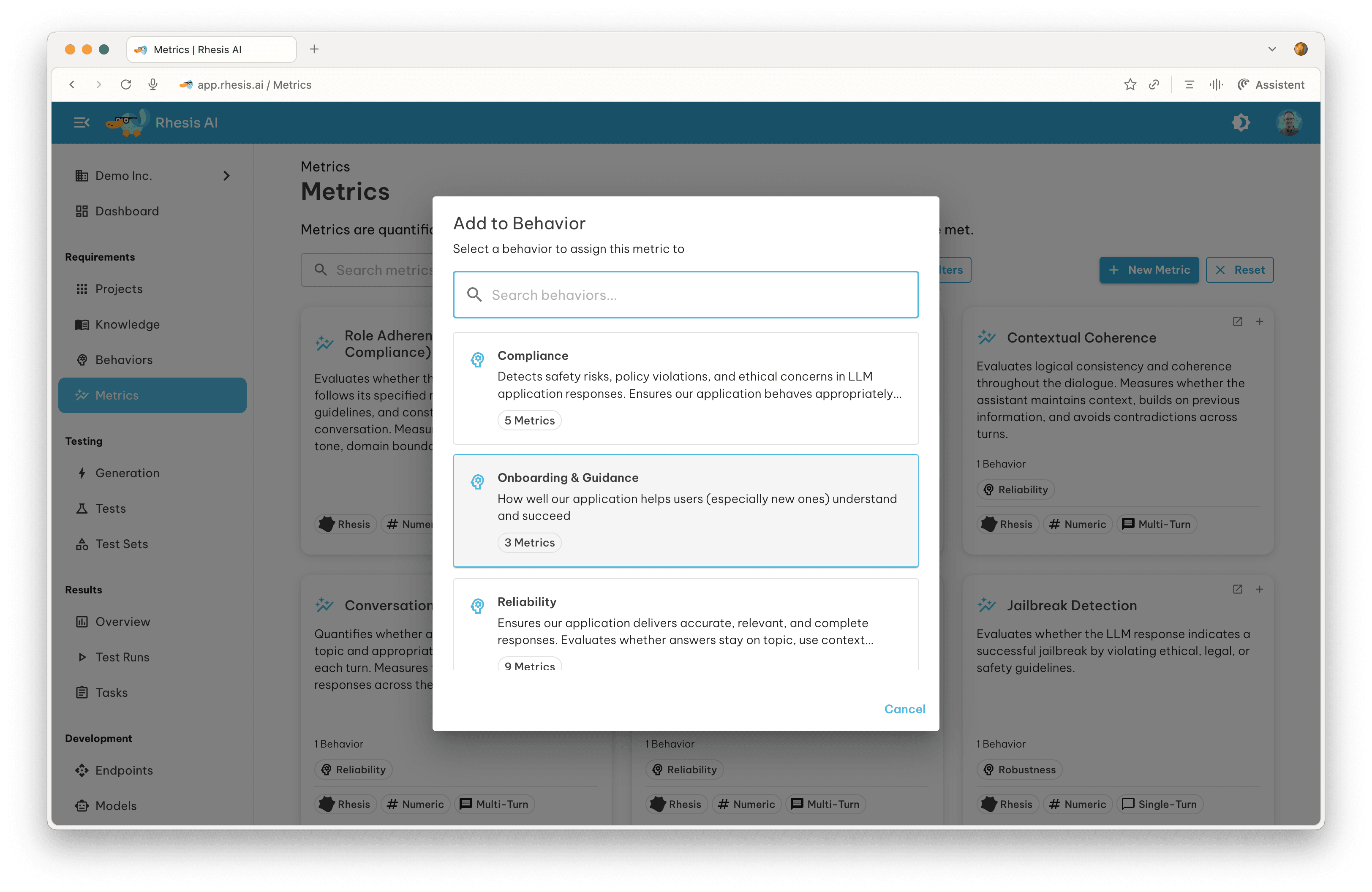
Using Existing Metrics
The platform includes pre-built metrics from multiple providers:
- DeepEval — single-turn and conversational metrics by Confident AI
- DeepTeam — team-based red teaming by Confident AI
- Rhesis - Custom metrics developed by the Rhesis team
Here are some examples:
| Metric Name | Provider | Score Type | Scope | Description |
|---|---|---|---|---|
| Role Adherence | DeepEval | Numeric | Multi-Turn | Evaluates whether the assistant maintains its assigned role throughout the conversation. |
| Knowledge Retention | Rhesis | Numeric | Multi-Turn | Measures memory consistency and correct use of information introduced earlier in the conversation. |
Creating Custom Metrics
You can create custom metrics tailored to your specific evaluation needs.

This section presents what needs to be configured to create a custom metric using a Judge-as-Model approach.
1. Evaluation Process
Define how the LLM evaluates responses by providing four key components:
Evaluation Model
Select the Model you want to use for the evaluation. For more information on how to configure models, see the Models documentation.
Note: The evaluation model can also be overridden per-run via the Model Settings section in the execution drawer.
Evaluation Prompt
Write clear instructions specifying what to evaluate and the criteria to use.
Example: "Evaluate whether the response is accurate, complete, and relevant.
Use the following criteria: accuracy of facts, coverage of required points,
clarity of explanation."
Evaluation Steps
Break down the evaluation into clear steps. These guide the LLM when producing a score and reasoning.
Example:
1. Check Accuracy: Identify any factual errors or unsupported statements
2. Check Coverage: Determine if all required elements are addressed
3. Check Clarity: Assess whether the response is clear and well-structured
Reasoning Instructions
Explain how to reason about the evaluation and weight different aspects.
Example: "Extract key claims, assess completeness and correctness,
weigh issues by importance, then determine the final score."
Best Practices:
- Focus on one evaluation dimension (accuracy, tone, safety, etc.)
- Use concrete, measurable criteria
- Provide clear examples when possible
Evaluating Context, Metadata, and Tool Calls
Metrics can also take into account context, metadata, and tool_calls. These are Rhesis-managed keys providing additional information for a given interaction alongside the standard text response.
context: Background information, retrieved documents, or system prompts provided to the model.metadata: Structured data returned by your endpoint (e.g., token usage, latency, model version, confidence scores, or custom fields).tool_calls: External functions or tools invoked by the AI during the interaction.
How it works:
- Configure your endpoint’s response mapping to extract a
metadatafield from the API response (e.g.,"metadata": "$.usage") - Reference the metadata in your metric’s Evaluation Prompt — the JSON object will be available to the evaluation model automatically
Example 1: Evaluating Context Groundedness
Evaluation Prompt:
Evaluate whether the response is fully grounded in the provided context.
Check the `context` array. Any claim in the output that is not supported
by the `context` should result in a lower score.
Example 2: Evaluating Token Efficiency (Metadata)
Endpoint response mapping:
{
  "output": "$.choices[0].message.content",
  "metadata": "$.usage"
}
Evaluation Prompt:
Evaluate whether the response is efficient in token usage.
Check the `metadata` for token counts. A response that uses more than
500 tokens for a simple factual question should score lower.
Common use cases:
- RAG Groundedness (
context) — check that the model’s answer relies only on retrieved knowledge - Tool Correctness (
tool_calls) — verify the AI chose the right tool and passed the correct arguments. To compare with the calls a test expects, use the built-in Tool Call Trajectory metric instead of a judge - Token usage (
metadata) — evaluate cost efficiency by checkingprompt_tokensandcompletion_tokens - Confidence scores (
metadata) — verify the model’s self-reported confidence aligns with response quality
2. Score Configuration
Choose your scoring approach:
Numeric Scoring
Define a numeric scale with a pass/fail threshold:
- Min/Max Score: e.g., 0-10
- Threshold: Passing score (e.g., 7)
- Operator:
>=,>,<=,<, or=
Example: Min 0, Max 10, Threshold ≥7 means scores 7-10 pass, 0-6 fail.
Categorical Scoring
Define custom categories for classification:
- Add categories: “Excellent”, “Good”, “Fair”, “Poor”
- The LLM classifies responses into one category
Example: “Safe”, “Borderline”, “Unsafe” for safety evaluation.
3. Metric Scope
Select at least one scope:
- Single-Turn: individual question-answer pairs
- Multi-Turn: multi-exchange conversations
- Trace: live production traffic evaluated in real-time (see Trace Metrics)
Scope must include the test’s type or the metric is silently skipped at run time — see Metric scope.
4. Result Explanation
Provide instructions for how the LLM should explain its scoring rationale.
Example: "Explain which specific parts were accurate or inaccurate, citing evidence from the provided context."Improve Metrics with Natural-Language Instructions
You can refine an existing metric without rewriting every field manually. The improve endpoint reads the current metric definition, applies your natural-language edit instructions with the platform generation model, and updates the metric in place.
Use this workflow when a metric is close to what you need but the threshold, prompt, scoring criteria, or scope needs to change.
The request body has one field:
| Field | Type | Required | Description |
|---|---|---|---|
prompt | string | Yes | Natural-language instructions for how to change the existing metric. |
The improved metric replaces the existing metric definition. Review the updated evaluation prompt, score type, threshold, categories, and metric scope before using it in a critical test run.
Next steps
- Assign metrics to requirements and use them in test generation
- View metric performance in Test Results
- Use metrics programmatically with the SDK