Tools
Tools connect external services to Rhesis so you can export their content into your Knowledge base for use in test generation and other workflows.
This page covers importing knowledge into Rhesis from tools like Notion, GitHub, and Jira. If you want to call Rhesis from Cursor or Claude Code to explore endpoints and run tests, see Agent Skill instead.
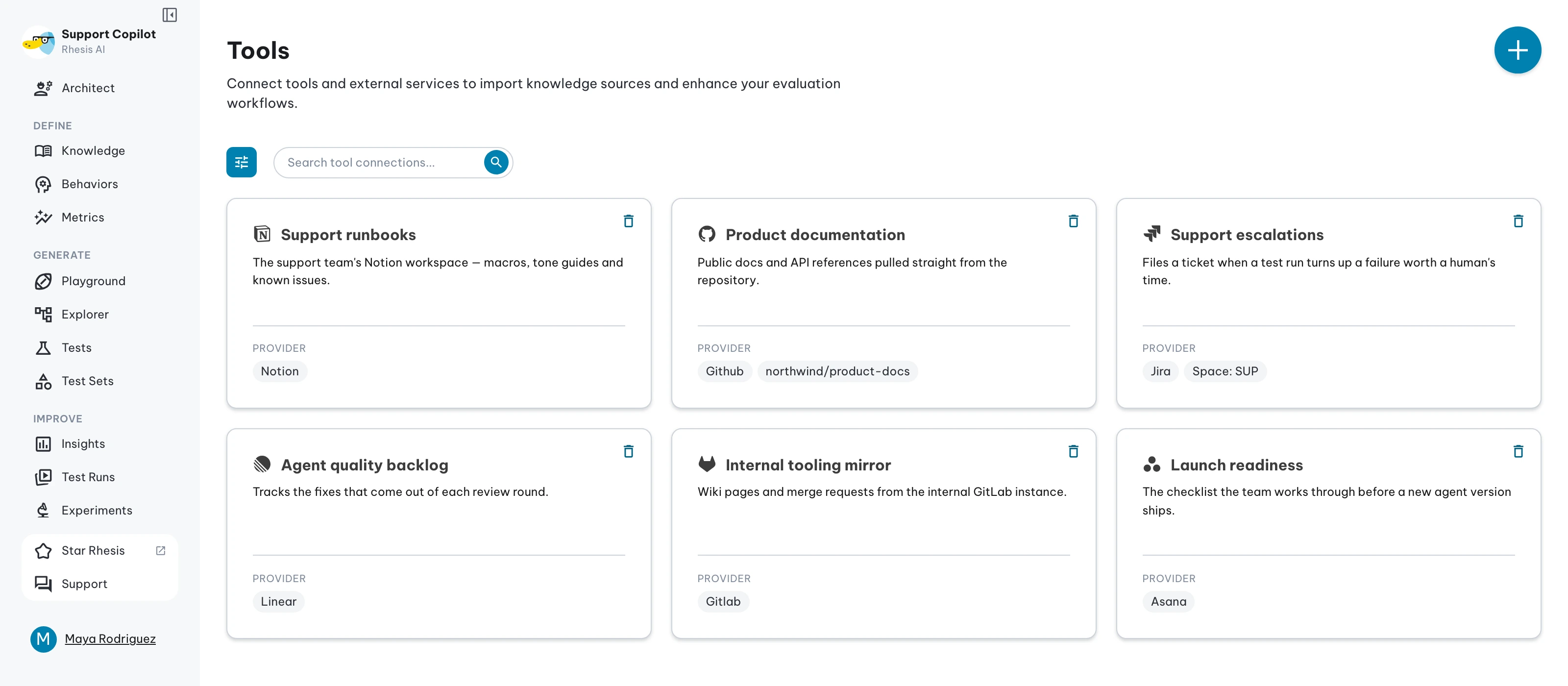
Setting Up a Tool Connection
Every connection follows the same flow in Rhesis: on the Tools page, click Add tool connection, choose a provider from the grid, fill in the connection name, token, and any provider-specific fields listed below, then Test the connection and Save. Each provider below covers only how to generate its token and which extra fields it needs.
 Notion
Notion- Create a Notion integration at notion.so/profile/integrations/internal .
- In the “Content access” tab, grant access to the pages and teamspaces you want to export from — required for the integration to reach your content.
- In Rhesis, paste the token (starts with
ntn...).
 GitHub
GitHub- On GitHub, go to Settings → Developer Settings → Personal Access Tokens → Tokens (classic).
- Generate a classic token with the
reposcope (full repository access). - In Rhesis, add the repository URL and paste the token (starts with
ghp...).
 Trello
Trello- Create or open a Power-Up at trello.com/power-ups/admin .
- On the Power-Up’s API key tab, generate an API key.
- Next to the key, click the Token link to authorize and generate a token — it’s shown only once, so copy it right away.
- In Rhesis, paste the API key and the token.
 Jira
Jira
Jira- Go to id.atlassian.com/manage-profile/security .
- Under API tokens, click “Create API token” (not “Create API token with scopes” — Rhesis needs the classic unscoped token). Verify your identity, name the token, and set an expiration.
- In Rhesis, also enter your Atlassian email and workspace URL (
yourorg.atlassian.net), then paste the token.
 GitLab
GitLab- Go to avatar → Edit profile → Access → Personal access tokens.
- Generate a “Legacy token” (not “Fine-grained token”) with the
apiscope (orread_apifor read-only). Name it and set an expiration. - In Rhesis, add the project namespace (
group/project, or a full project URL) and paste the token (starts withglpat-). Self-managed instances also need the GitLab API URL.
 Asana
Asana
Asana- Go to profile photo → My Settings → Apps → “Manage Developer Apps”.
- Under “Personal access tokens”, create a new token and copy it (shown only once).
- In Rhesis, paste the token. Optionally add a workspace GID to scope search and import.
 Azure DevOps
Azure DevOps- Sign in at
https://dev.azure.com/{your_organization}, then go to user settings → Personal access tokens. - Create a token with the required scopes (e.g. Work Items (Read)) or Full access, set an expiration, and copy it (shown only once).
- In Rhesis, enter your organization name (not the full URL), your Azure DevOps email, and the project, then paste the token.
 Linear
Linear- In Linear, go to Settings → Account → Security & access.
- Under “Personal API keys”, create an API key with an access level and copy it (shown only once, starts with
lin_api_). - In Rhesis, paste the token.
 Shortcut
Shortcut- In Shortcut, go to Settings → Your Account → API Tokens.
- Generate a token and copy it (grants full workspace access).
- In Rhesis, paste the token.
Watch this video to see how to connect your Notion workspace and export pages as knowledge sources:
Next steps
- Export sources from a connected tool into Knowledge.
- Generate tests from exported sources in Test Generation.