Managing Endpoints
Testing Your Endpoint
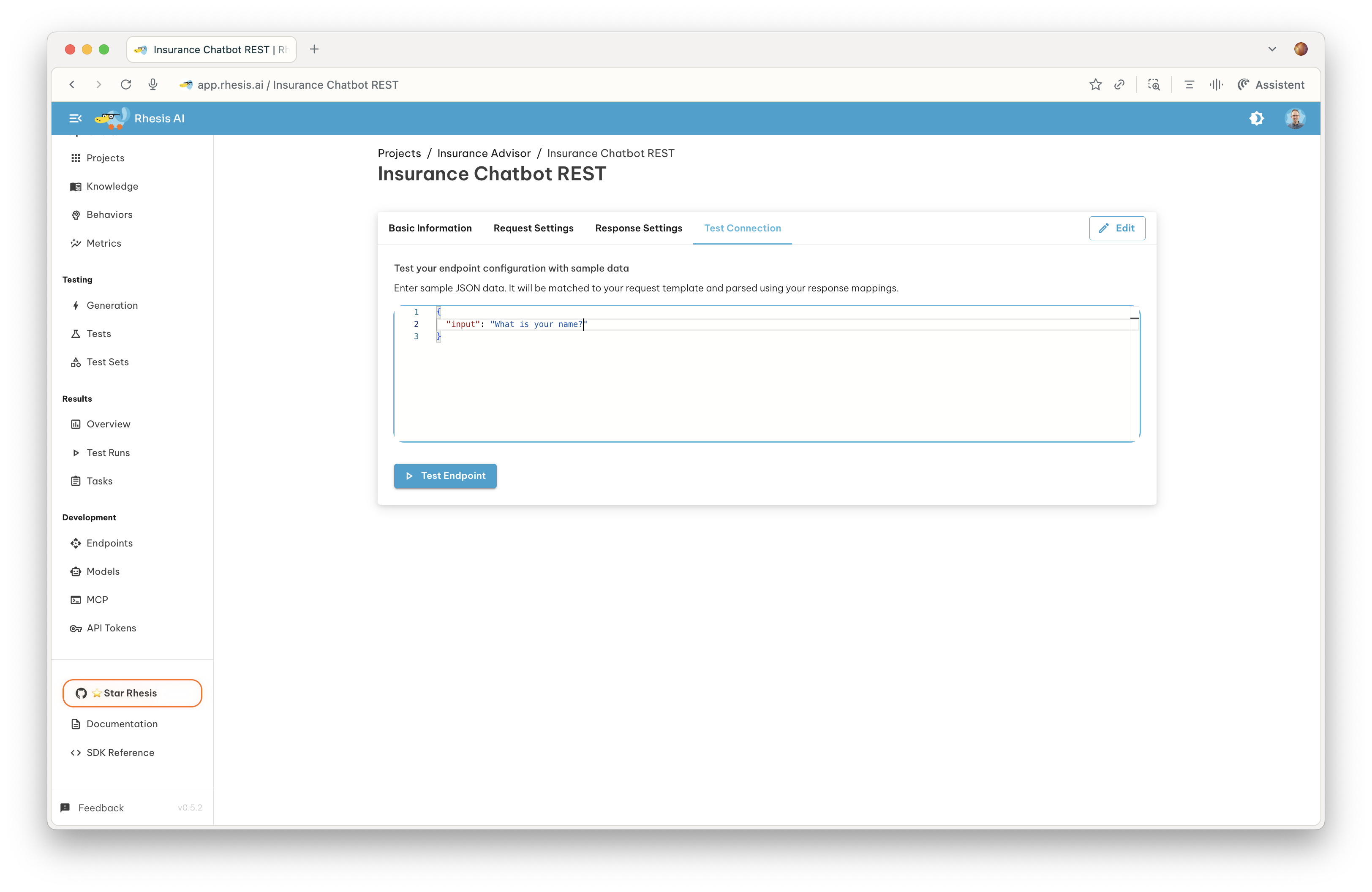
Before running full test suites, verify your endpoint configuration works correctly. Navigate to the Test Connection tab, enter sample input data, and click Test Endpoint. Review the response to ensure it returns expected data.
Modifying Endpoints
Viewing Endpoints
The Endpoints page displays all your configured endpoints organized by project. Each entry shows the project icon and name, the endpoint name, the protocol (REST or WebSocket), and the environment (development, staging, or production). Click any endpoint to view its full configuration and execution history.
Editing Endpoints
Open the endpoint details page, click Edit, modify any configuration fields, and click Save. Changes take effect immediately for new test runs.
Copy endpoints
Easy functionality to copy the configurations of an existing to a new one.
To create a copy of an existing endpoint, open the endpoint details page and click Duplicate. Rhesis creates a new endpoint with the same configuration and appends “(Copy)” to the name. You can also select multiple endpoints from the grid and duplicate them in bulk.
From the endpoint details page, you can also navigate to the Playground to interact freely with the endpoint.
Deleting Endpoints
Select one or more endpoints from the grid and click Delete.
Important: Deleting an endpoint does not delete associated test configurations or historical test results. Your test data remains intact, but you cannot execute new tests with a deleted endpoint.
Using Endpoints in Tests
Executing Test Sets
When you run a test set, select which endpoint to execute it against, configure the execution mode (parallel or sequential), and click Run Tests. Rhesis sends each test’s prompt through the endpoint and evaluates responses against your configured metrics.
Multiple Endpoints
Creating multiple endpoints opens up powerful testing scenarios. You can run the same tests against different AI models to compare their performance, set up separate endpoints for each environment to validate changes before production deployment, configure A/B tests to compare response quality across different settings, or use different endpoints for load and performance testing. Each test run is independent, allowing you to analyze differences in behavior, quality, and performance across your various configurations.
Environment Management
Organize endpoints by environment to match your deployment workflow.
Development endpoints typically point to local or development servers where you can iterate quickly, debug issues, and test configuration changes without any risk to production systems.
Staging endpoints connect to pre-production systems for validation, integration testing, and performance verification before promoting changes to production.
Production endpoints represent live production APIs. Use these for regression testing and quality monitoring of your deployed AI systems. These endpoints require extra care when modifying.
Environment tags help you quickly identify which endpoints are production-critical and which are safe for experimentation.