Test Execution
Executing a test set runs it against an endpoint to evaluate your LLM application. Each execution creates a Test Run containing all individual test results with detailed metrics and evaluation data. This guide covers the configuration options available when running tests.
Execution Overview
When you execute a test set, Rhesis:
- Sends each test prompt to your configured endpoint
- Captures the model’s response
- Evaluates responses against configured metrics
- Records results in a test run for analysis
Starting a Test Execution
To execute a test set:
- Navigate to Test Sets in the sidebar
- Select the test set you want to execute
- Click the Execute Test Set button
- Configure execution options in the drawer
- Click Execute Test Set to start
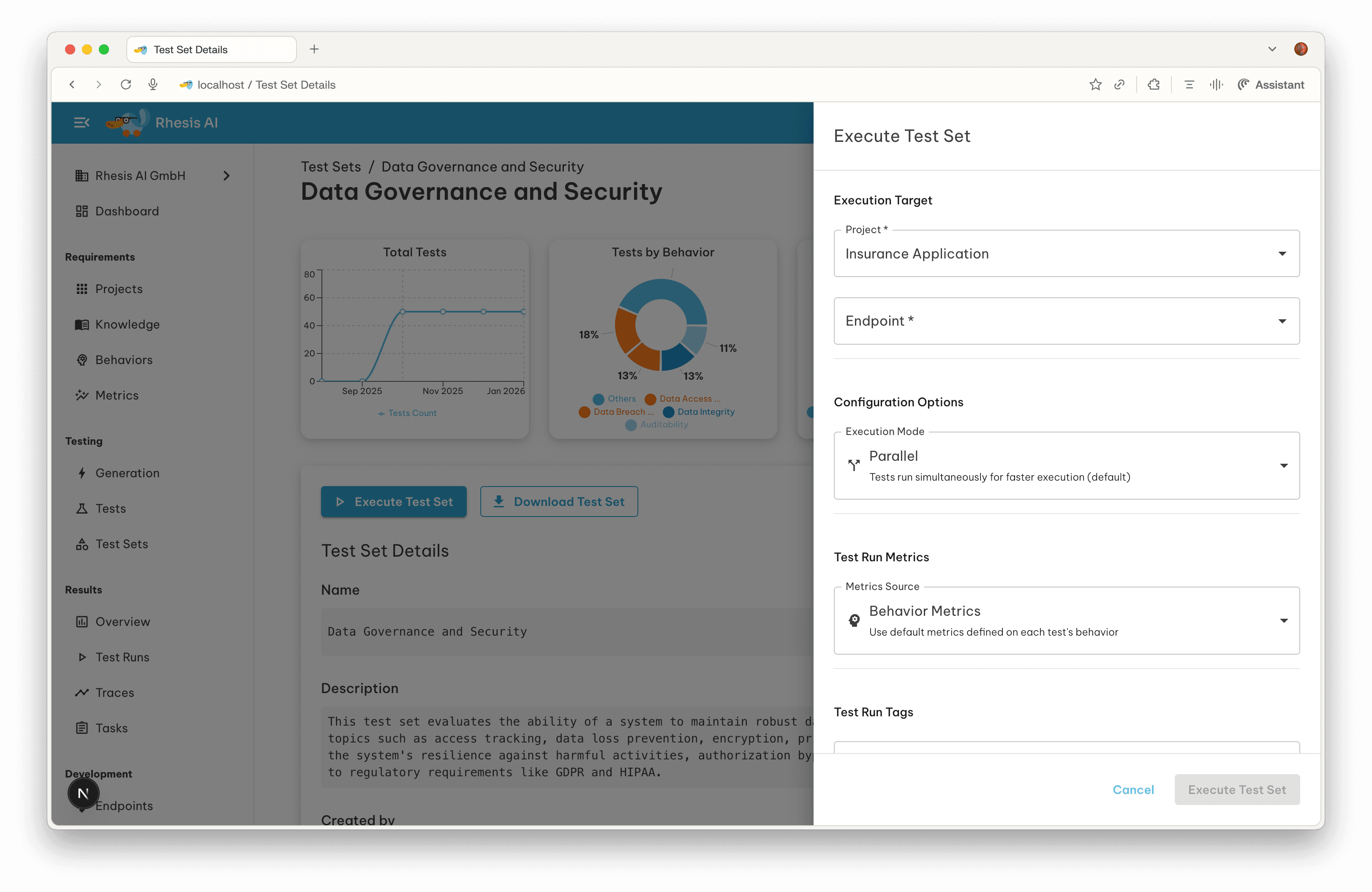
Execution Target
The execution target defines where your tests will run.
Project
Select the project containing your endpoint configuration. Projects organize related endpoints and their settings.
Endpoint
Choose the specific endpoint to test against. The endpoint defines:
- The AI model or service URL
- Authentication credentials
- Request/response formatting
- Rate limiting settings
Only endpoints from the selected project are shown in the dropdown. Create endpoints in the Endpoints section before executing tests.
Configuration Options
Execution Mode
Choose how tests are processed:
| Mode | Description | Best For |
|---|---|---|
| Parallel | Tests run simultaneously for faster execution | Large test sets, CI/CD pipelines |
| Sequential | Tests run one after another | Rate-limited APIs, debugging |
Scoring Target
The scoring target controls whether the execution calls your endpoint or re-uses outputs from a previous run:
| Target | Description | Best For |
|---|---|---|
| Fresh Outputs | Calls the endpoint and scores the new responses. This is the default behavior. | Standard test runs, regression testing |
| Reuse Outputs | Re-scores outputs from the latest completed test run without calling the endpoint. Only metrics are re-evaluated. | Trying different metrics, metric tuning, cost-free re-evaluation |
When you select Reuse Outputs, Rhesis looks up the most recent completed test run for the selected test set and endpoint combination. An info panel shows the referenced run’s name, date, pass rate, and test count, with a link to view the original run.
The Reuse Outputs option is only available when at least one completed test run exists for the selected endpoint. If no previous run is found, the option is disabled.
This is particularly useful when you want to:
- Experiment with different metrics without re-running expensive API calls
- Compare evaluation criteria by re-scoring the same outputs with different metric configurations
- Validate metric changes by checking how updated metrics affect existing results
Preflight Checks
Before execution, the run drawer can validate the selected endpoint, models, test
sets, and metrics through POST /preflight-checks. Results stream back to the
drawer while checks run, so you can retry, continue, or adjust configuration
before starting the test run.
| Check | When it runs | What it validates |
|---|---|---|
| Endpoint Connectivity | Fresh-output runs | The selected endpoint can be reached before live execution |
| Evaluation Model | All runs | An evaluation model is configured and usable |
| Execution Model | Multi-turn runs | A Penelope execution model is configured and usable |
| Test Set Has Tests | All runs | Each selected test set contains tests |
| Requirement-Metric Coverage | All runs | Tests have requirement and metric coverage for scoring |
| Metric Functionality | All runs | Selected metrics can run before the full execution starts |
| Metric-Endpoint Compatibility | All runs | Metrics that require context, tool_calls, or expected responses have the data they need from the endpoint mapping and tests |
Endpoint connectivity is skipped for Reuse Outputs runs because the endpoint is not called in that mode. Compatibility warnings do not block execution; update the endpoint response mapping, add expected responses, or choose compatible metrics before continuing.
Model Settings
Override the default models used for evaluation and execution on a per-run basis.
Evaluation Model
Select which model evaluates test responses using your configured Metrics. This applies to both single-turn and multi-turn test sets.
- Default model: Uses the default evaluation model configured in your Model settings. The currently configured model name is shown in the description.
- Specific model: Choose any model connected to your organization.
Execution Model (Multi-Turn Only)
For multi-turn test sets, select the model that drives the Penelope conversation agent. This option is only visible when executing a multi-turn test set.
- Default model: Uses the default execution model configured in your Model settings.
- Specific model: Choose any model connected to your organization.
Model overrides apply only to the current run. They do not change your default model settings.
Test Run Metrics
Metrics define how test responses are evaluated. Rhesis supports a flexible hierarchy that allows you to configure metrics at different levels.
Metrics Sources
When executing a test set, you can choose from three metrics sources:
| Source | Description |
|---|---|
| Requirement Metrics | Use default metrics defined on each test’s requirement. This is the standard configuration. |
| Test Set Metrics | Use metrics configured on the test set. Overrides requirement-level defaults. |
| Custom Metrics | Define specific metrics for this execution only. Completely overrides other levels. |
Rhesis resolves which metrics to use based on a priority hierarchy. When a test execution starts, the system checks for metrics at each level in order, using the first level that has metrics configured.
The priority order ensures maximum flexibility: you can define sensible defaults at the requirement level, customize them for specific test sets, and still override everything for individual executions when needed.
There is no merging between levels. If execution-time metrics are specified, they completely replace test set and requirement metrics.
Defining Custom Metrics
To use custom metrics for a single execution:
- In the Metrics Source dropdown, select Custom Metrics
- Click Add Metric to open the metric selection dialog
- Select the metrics you want to use
- Only metrics applicable to your test set type (Single-Turn or Multi-Turn) are shown
Custom execution-time metrics are not saved to the test set. They only apply to the current test run.
When to Use Each Level
| Level | Use Case |
|---|---|
| Requirement Metrics | Standard testing with default evaluation criteria per requirement type |
| Test Set Metrics | Specialized test sets like Garak security tests with custom detectors |
| Execution-time Metrics | Quick experiments, A/B testing evaluation criteria, one-off validations |
Test Run Tags
Add tags to organize and filter test runs:
- Type tag names and press Enter or comma to add
- Tags help categorize runs by purpose, sprint, or feature
- Filter test runs by tags in the Test Runs overview
Re-running Tests
You can re-run a test from the test run detail view:
- Navigate to Test Runs and select a test run
- Click the Re-run button
- The re-run drawer opens with pre-filled settings:
- Project, endpoint, and test set are fixed
- Execution mode, scoring target, and metrics source can be configured
- Model selections (evaluation and execution models) are preserved from the original run
- You can modify tags for the new run
- Click Re-run Test to start a new execution
When re-running with Reuse Outputs selected as the scoring target, the outputs from the test run you are currently viewing are reused. This lets you quickly re-evaluate the same responses with different metrics or configurations.
Re-running creates a new test run with the same test set and endpoint. This is useful for regression testing, validating fixes, or re-scoring existing outputs with updated metrics.