Endpoints
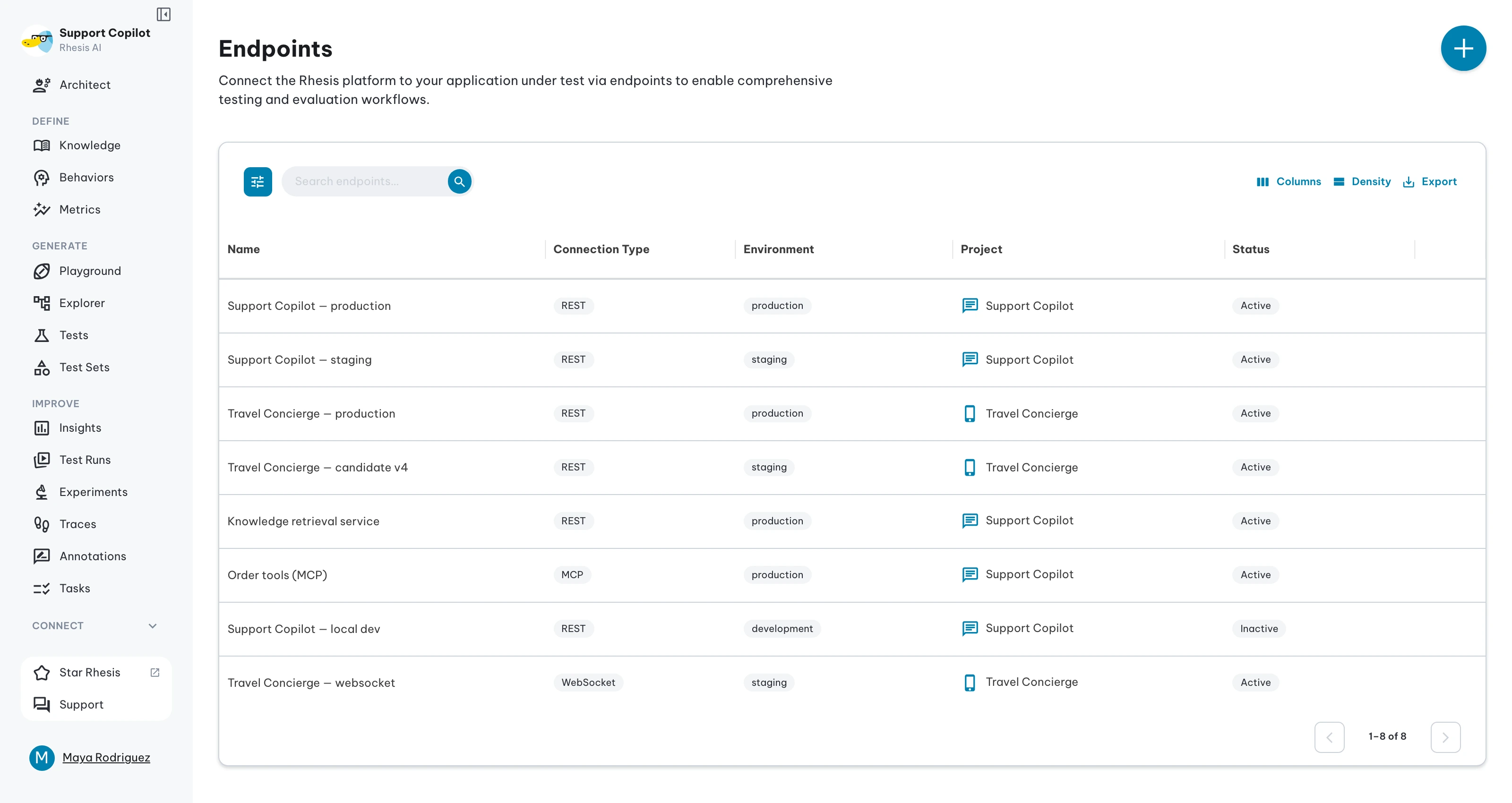
An endpoint is how Rhesis connects to your AI model or application to send test inputs and evaluate responses.
There are two ways to set one up depending on how your model is exposed:
- REST or WebSocket — your model is behind an HTTP API. You configure the URL, authentication, and request/response mappings directly in the platform. This is the most common case.
- SDK — your model is a Python function with no HTTP layer. You register it as an endpoint using the
@endpointdecorator from the Rhesis SDK. See SDK Endpoints.
Once configured, an endpoint can be reused across any number of tests and test sets. You can also run the same tests against multiple endpoints to compare models, environments, or configurations.
Platform-Managed Variables
Rhesis populates these variables at runtime; you reference them in request templates and extract them in response mappings.
Request Variables
Available in request body templates via Jinja2 syntax ({{ variable }}).
| Variable | Description |
|---|---|
input | The user query or test prompt. This is the primary text sent to your AI endpoint. |
files | Array of file attachments included with the test. Each file is an object with filename, content_type, and data (base64-encoded). Use file format filters to convert files into provider-specific formats. |
conversation_id | Conversation tracking identifier for multi-turn endpoints (both stateful and stateless). Rhesis uses this to track conversations across turns. |
messages | Full conversation history as an array of message objects. Used for stateless endpoints that require the entire history with every request. |
system_prompt | System prompt text. Rhesis prepends it to the messages array and strips it from the final request body before sending. |
experiment_parameters | Resolved experiment parameters for the current test run. Access individual values with dot notation: {{ experiment_parameters.model }}, {{ experiment_parameters.temperature }}. Only populated when the test run is associated with an experiment; empty dict otherwise. See Using Experiment Parameters below. |
params | Deprecated alias for experiment_parameters. Existing templates using {{ params.model }} still work but will log a deprecation warning. |
test_id | Unique identifier of the test being executed. Only populated during test runs; renders as an empty string otherwise. Place it wherever your API expects it — see Test Execution Context for examples. |
test_run_id | Unique identifier of the current test run. Only populated during test runs; renders as an empty string otherwise. |
test_configuration_id | Unique identifier of the test configuration driving the run. Only populated during test runs; renders as an empty string otherwise. |
Provider-specific Jinja filters such as to_anthropic, to_openai, and to_gemini are documented in
Request Mapping.
Response Variables
Extracted from your API response using JSONPath or Jinja2 expressions in the response mapping.
| Variable | Description |
|---|---|
output | The main response text from your API. This is what Rhesis evaluates against your metrics. |
context | Additional context or reasoning provided by the response (e.g., retrieved documents, sources). |
metadata | Structured data about the response (e.g., model version, token counts, confidence scores). Stored with the test result and available to custom metrics during evaluation. |
tool_calls | Tool or function calls made by the API during response generation. Stored with the test result and available to metrics that evaluate tool use. |
version_info | The version of your application behind this endpoint, as a JSON object (prompt version, model, parameters). Recorded on the test run and shown in its Configuration tab, the test runs list, and trace span details. See Version Information. |
| Conversation ID fields | Any of the recognized conversation identifiers: conversation_id, session_id, thread_id, chat_id, dialog_id, dialogue_id, context_id, interaction_id. Map one of these for multi-turn endpoints so Rhesis can track conversations across turns. |
You can include additional custom fields in both request templates and response mappings. Custom fields are passed through and stored, but Rhesis does not actively use them for evaluation or conversation management.
Request mapping uses Jinja2 templates to format platform variables into your API’s request body. Response mapping uses JSONPath expressions to extract values from the response. For full details, see Request Mapping and Response Mapping.
Using Experiment Parameters
When you run tests against an experiment, Rhesis resolves the experiment’s parameter values and makes them available in your request mapping under the experiment_parameters variable. This lets you drive model selection, temperature, system prompts, and any other configuration directly from the experiment, without changing your endpoint definition.
Accessing parameters in request mappings
Use Jinja2 dot notation to reference individual parameter values:
Numeric and boolean parameters (like temperature or max_tokens) should be
referenced without quotes so they render as JSON numbers or booleans rather
than strings.
When no experiment is associated with a test run, experiment_parameters is an empty object and unresolved references render as empty strings. You can use Jinja2 defaults to handle this gracefully:
How it works
Parameter injection follows the same flow for both REST and SDK connector endpoints:
- When a test run is created, the experiment’s parameter values are resolved once and stored as an immutable snapshot on the test run.
- During execution, the snapshot is injected into the Jinja2 template context as
params. - The template renderer evaluates
\{\{ params.model \}\}(or any other parameter name) against the snapshot.
This means every test in a run uses the exact same parameter values, and those values are recorded alongside the test results for full reproducibility.
REST vs. SDK connector
Both endpoint types receive the same resolved parameters:
- REST endpoints access parameters through
\{\{ params.* \}\}in request mappings, as shown above. Your external API receives the rendered values in the HTTP request body. - SDK connector endpoints should access parameters through
\{\{ params.* \}\}inrequest_mapping, or read the test-run snapshot throughParameters.get()from inside the function. The legacy@endpoint(parameters=...)kwarg-merging path is deprecated. See Connector Injection for details.
Managing endpoints
After creation, endpoints can be edited, duplicated, deleted, and tested from the detail page, and reused across tests. See Management for the detail-page tabs, grid actions, and environment organization.
Next steps
- Create an Endpoint — wizard walkthrough and Auto-Configure
- Request Mapping — Jinja2 syntax, filters, multi-turn patterns
- Response Mapping — JSONPath and Jinja2 extraction
- Examples — provider configurations
- Management — testing, detail tabs, and environments